Automations, discounts, and delivery options
Let Inventro send quotes and contracts for you, give customers discounts, and offer delivery or pickup.
Automations
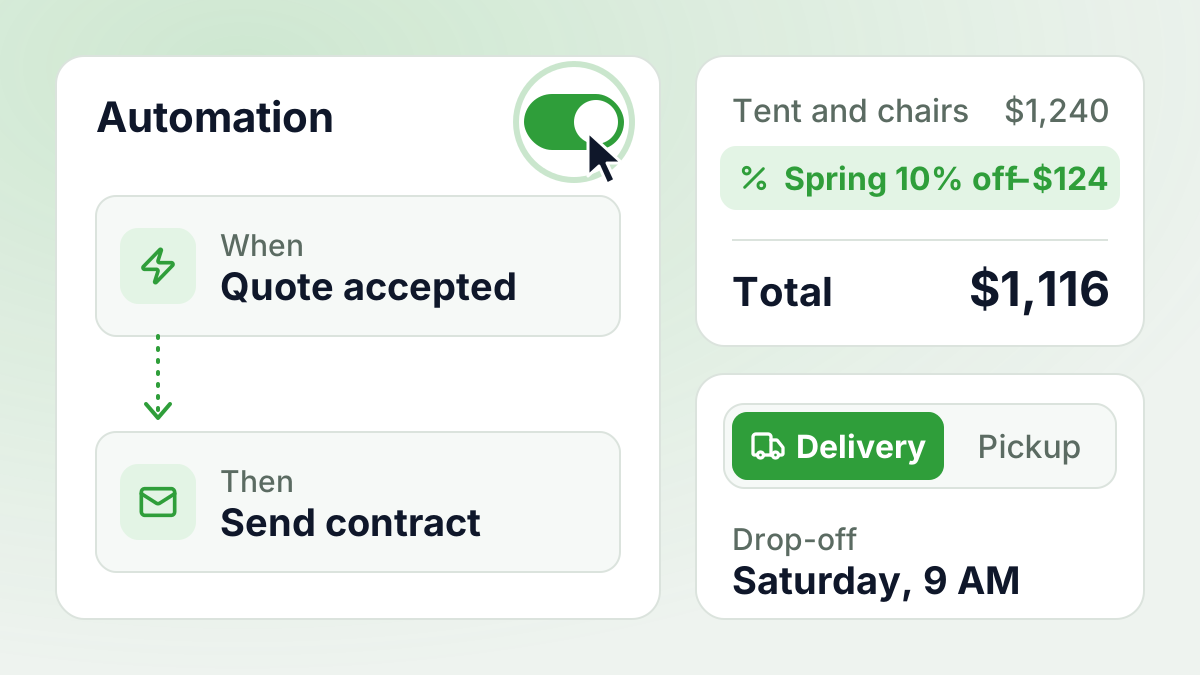
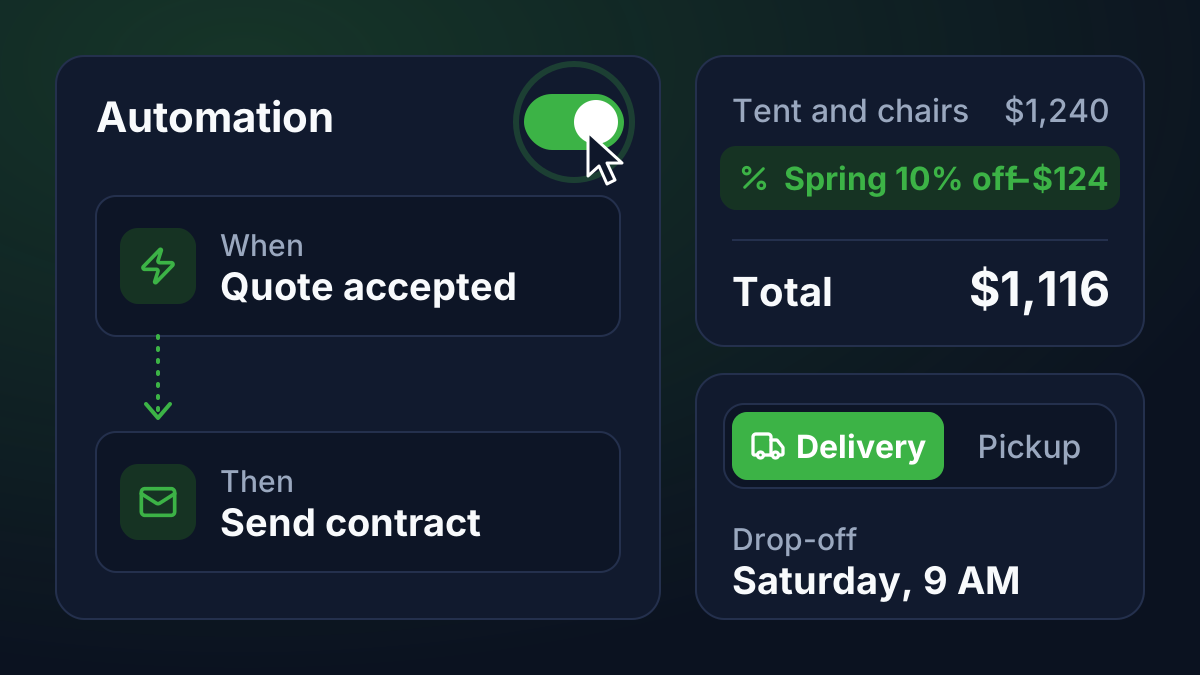
Pro planLet Inventro do the routine work for you. For example: when a customer accepts a quote, Inventro sends them the contract. Automations is in beta.
To set it up, go to Settings › Automations. Only an owner or admin can do this.
Each automation has two parts:
- When something happens: a new online order, a quote is accepted or declined, or a contract is signed or declined.
- Then Inventro does something: sends a quote, sends a contract, or changes the booking status.
Automations can follow each other. A new online order gets a quote. The customer accepts it and gets a contract. They sign it, and the booking is confirmed.
Not sure where to start? Click Show recipes and pick a ready-made one, such as Quote, contract, confirm. You can change it later.
A change can take up to a minute to show on the booking.
Automations is part of the Pro plan. One automation, Confirm instantly, works on every plan.
New to it? Read the Automations guide. It has a short video tour.
Discounts
All plansGive customers money off, for example 10% off tents in spring. Create discounts in Pricing › Discounts.
- Choose how much off, as a percentage.
- Choose what it applies to: some products, or whole categories.
- Add rules if you want: a minimum quantity, or dates the rental must start between. Turn on Do not combine if this discount should not add up with other discounts.
Customers see the discount name on their quotes and invoices. If you turn a discount off later, bookings that already have it keep it.
Need a special price for one customer? You can also give a one-off discount on a single booking.
Delivery and pickup
All plansEach booking now shows how the items get to the customer and how they come back.
- Going out: you deliver, or the customer picks up.
- Coming back: you collect, or the customer brings them back.
You can mix them. For example, you deliver the tent, and the customer brings it back to your store.
- Choose the options you offer in Settings › Scheduling, under Fulfillment. Only an owner or admin can do this.
- Customers choose an option when they book on your website. In the storefront builder, you can hide some options, pick a default, or hide the choice.
- You can change the option on a booking while it is Pending or Confirmed.
- If you sync your calendar, the event title shows the option.
- The Picked up status is now called Out.
- In Settings › Scheduling, your usual times are now called Starts at and Ends by, under Standard start and end times. Before, they said Delivery from and Collect by.
- When you add a booking yourself, each choice now has a short note under it. For example: They pick up at your store, or You go back to them for it.
Help guides
All plansWant step-by-step help? Read our new guides at inventro.io/help, or search for what you want to do. The first guide shows how to set up Automations, with a short video.
This page
All plansThis page lists what changed in Inventro. When we add something big, a short note opens on your dashboard. Click Got it to close it.
To read this page again, open your account menu (your name, at the bottom left) and click What's new.
Fixes
- Email buttons always work. Some email apps block buttons. Emails with a button now also show the link under it, with the words "If the button doesn't work, copy this link into your browser". Don't want the link? Open the email in Settings › Templates and turn off Show link below button.
- Quotes and contracts on iPhone. Some iPhone email apps open your quote or contract in a view where the buttons do not work. The page now shows Open in Safari, so your customer can accept or sign there.
- Signed date on contracts. The date a customer signed a contract now shows in your business's time zone.