

Pro plan only. Not on Pro? Then only Confirm instantly works for you. To see your plan, go to Settings › Billing. Only owners and admins can use this page.
Before you start
- Inventro already has a quote and a contract ready to send, so you can start right away. To change how they look, go to Settings › Templates.
- Automations only acts on what happens from now on. Orders that came in before are not changed.
- Other tools call this workflows or auto-confirm.
- Automations does not send reminders yet, such as payment or pickup reminders.
- Automations is new (beta), so it can still change a little.
Words we use
Pending: the booking is waiting for you. The items are not held for it yet.
Confirmed: the booking is on. The items are held for it, and the customer gets a confirmation email.
Cancelled: the booking is off. The items are free again, and the customer gets a cancellation email.
Pick a recipe
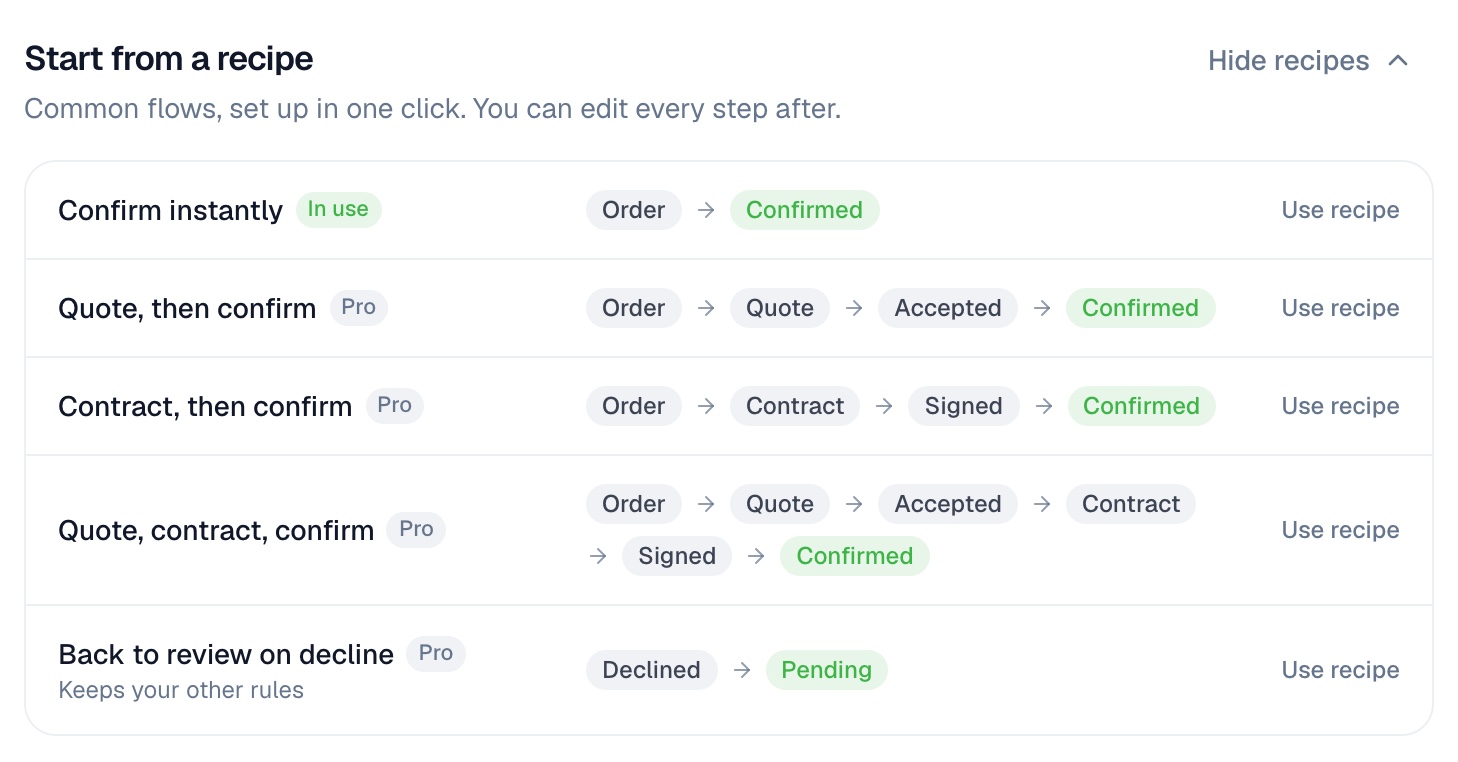
A recipe is a ready-made setup. You pick one, and Inventro does the rest. You can change it later.
Not sure? If you send both quotes and contracts, use Quote, contract, confirm.
Set up a recipe
- Go to Settings › Automations.
- Under Start from a recipe, find your recipe and click Use recipe. Can't see the list? Click Show recipes.
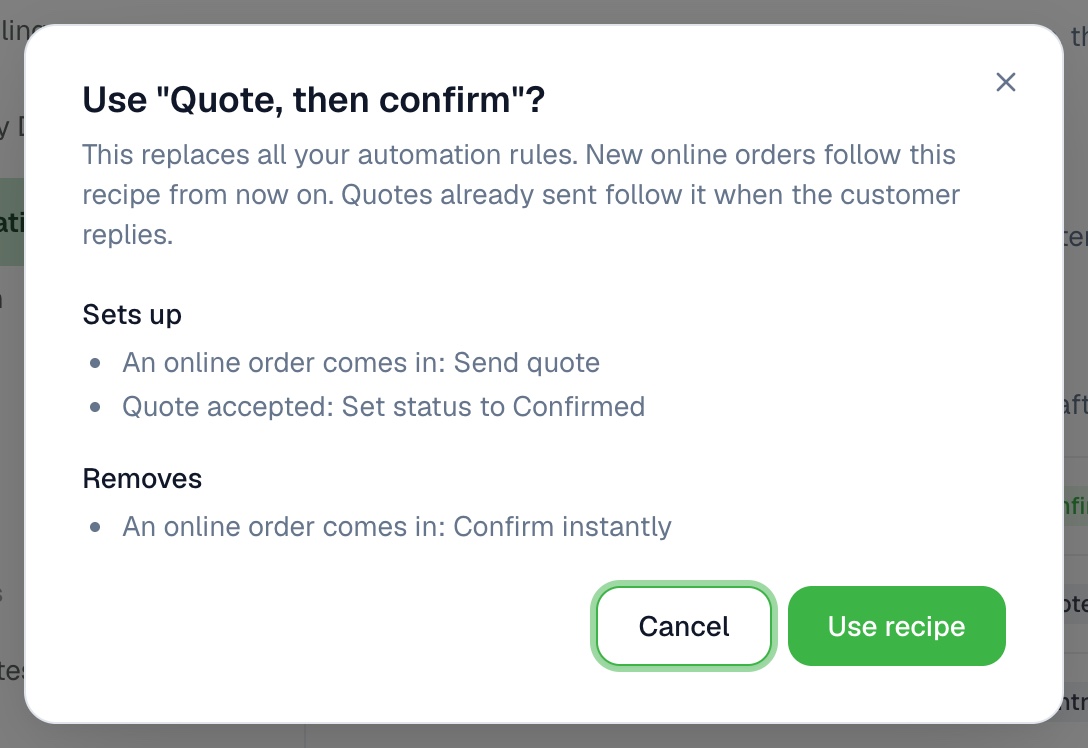
- A box opens. It shows what the recipe adds and what it removes. To agree, click Use recipe in the box.
Done when the cards the recipe uses show Active. From now on, Inventro does these steps for every new online order.
A recipe replaces your old setup. The box shows what it removes before you agree. Cards the recipe does not use show Off, also the cards for when a customer says no. To use them again, pick Back to review on decline after your recipe. It only changes those two cards.
How it works
The page has one card for each moment, like Quote accepted. On each card, Inventro does up to three things, in order. One card can lead to the next.
- An online order comes inwhen
- Send quotethen
- Quote acceptedwhen
- Set status to Confirmedthen
It can take up to a minute before you see the change on the booking. To see what Inventro did, open the booking. Steps that ran are in its Activity tab. Steps Inventro skipped are System notes in its Notes tab.
Change a card
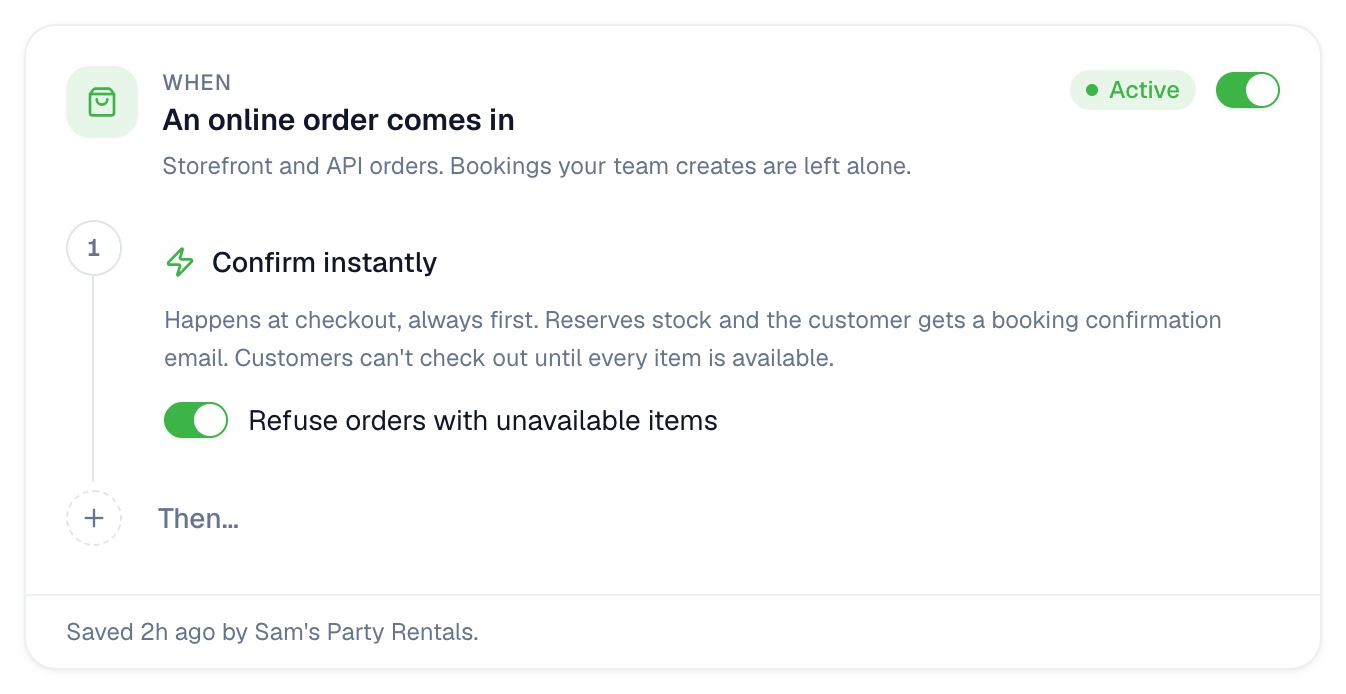
- On the card, click Then… and pick what Inventro should do. On a card with no steps, click Nothing happens yet. Add a step.
- If you picked Send quote or Send contract, pick which quote or contract to send. These come from Settings › Templates.
- To change the order, use the arrows. To remove a step, click ×.
- Click Save. Changed your mind? Click Discard.
To stop a card for a while, use its switch. If you remove every step, the button changes to Remove rule, and clicking it removes the card's rule.
Pause or undo
- Pause a card: turn off the switch on the card. It shows Paused until you turn it on again.
- Undo a recipe: pick a different recipe, or remove the steps from the cards you do not want.
What each card does
If An online order comes in has the Confirm instantly step, Inventro confirms the order the moment the customer places it. Don't want orders for items that are already booked? Turn on Refuse orders with unavailable items under that step.
When something does not happen
›No quote or contract was sent
Inventro does not send a quote if the customer already has one waiting or accepted.
It does not send a contract if one is waiting for a signature or is already signed.
It does nothing if the customer has no email address, or if the booking is not Pending or Confirmed.
For most of these, the booking's Notes tab has a System note that says "Automation skipped" and why.
›The booking stays Pending
Inventro only confirms a booking when every item is free. If one is not, the booking stays Pending, and its Notes tab has a System note that says "Not confirmed automatically".
Free up the item or change the dates. Then open the booking and click Reserve & Confirm.
›A yellow warning says my cards start each other
Two cards can start each other. For example: Quote declined sends a contract, and Contract declined sends a quote. Then the customer gets a new email each time they say no.
You can still save. To stop it, remove one of the two steps. The warning names them.
›Inventro will not save my card
Inventro will not save cards that would start each other again and again without the customer doing anything. The message tells you what to change.
›Nothing has changed on the booking yet
Wait up to a minute, then reload the booking.